
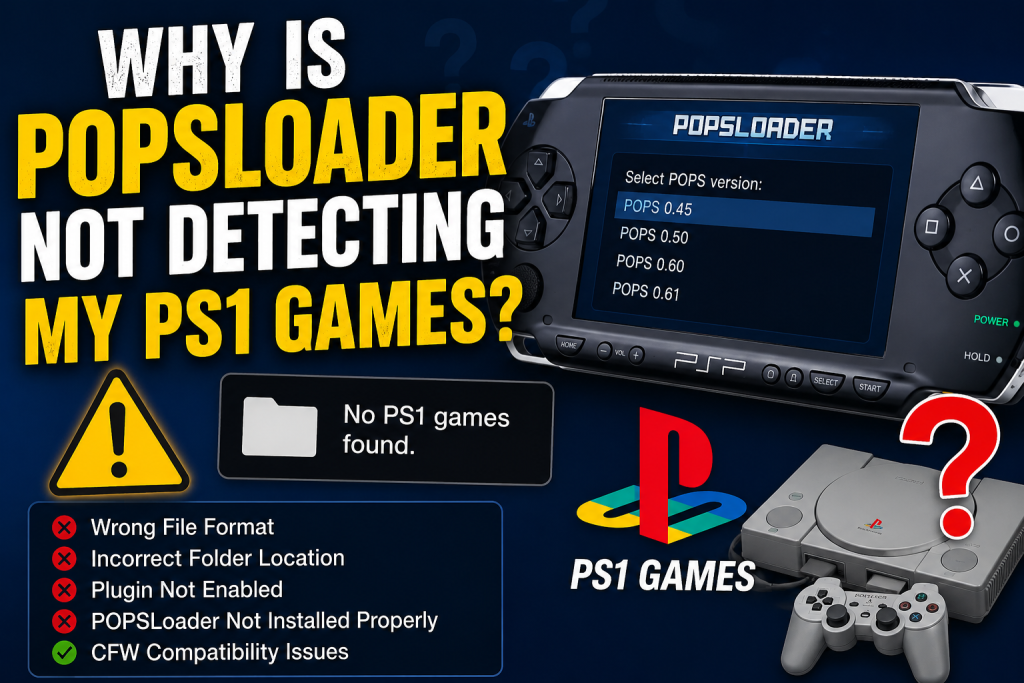
If POPSLoader is not detecting your PS1 games on PSP, it can be frustrating, especially when you’re eager to enjoy your favorite classic titles. This issue is more common than many users realize and is often caused by simple setup mistakes, such as incorrect file placement, unsupported game formats, disabled plugins, or compatibility problems with custom firmware.
Fortunately, most of these problems can be resolved without advanced technical knowledge. In this guide, we’ll explore the most common reasons why POPSLoader fails to recognize PS1 games and provide practical solutions to help you get back to gaming quickly.
Read More: Does POPSLoader Work with USB, HDD, MMCE, or MX4SIO?
Understanding How POPSLoader Works
POPSLoader is a plugin designed for PSP systems running custom firmware. It allows users to switch between different versions of Sony’s built-in PS1 emulator, known as POPS. This compatibility feature helps improve performance and fixes issues with certain PS1 titles that may not work correctly with the default emulator version.
However, for POPSLoader to detect and launch your PS1 games, your game files must be placed correctly and meet specific requirements.
Check the Game Folder Location
One of the most common reasons POPSLoader cannot detect PS1 games is an incorrect file location.
Your converted PS1 game should typically be stored in the following directory:
PSP/GAME/GameName/EBOOT.PBP
Each game should have its own folder inside the GAME directory. If the EBOOT.PBP file is placed elsewhere, the PSP may fail to recognize it.
Double-check the folder structure on your Memory Stick or storage device to ensure everything is organized correctly.
Verify That the Game Is in EBOOT Format
POPSLoader does not work with raw PS1 image files such as ISO, BIN, IMG, or CUE files. The game must first be converted into the PSP-compatible EBOOT.PBP format.
If you downloaded a PS1 game backup that is still in BIN or ISO format, you’ll need to convert it using a PS1-to-PSP conversion tool before attempting to run it on your device.
A corrupted or improperly created EBOOT file can also prevent the game from appearing.
Confirm That POPSLoader Is Properly Installed
Another possible reason for detection issues is an incomplete POPSLoader installation.
To function correctly, POPSLoader requires:
- The POPSLoader plugin files in the correct folder.
- The necessary POPS modules extracted from official PSP firmware files.
- Proper plugin activation through the system configuration.
If any required file is missing, POPSLoader may fail to operate as expected.
Review your installation process carefully to ensure no steps were skipped.
Make Sure the Plugin Is Enabled
Even if POPSLoader is installed, it won’t work unless the plugin is enabled.
You can verify this by accessing the recovery menu on your PSP and checking the plugins section. If POPSLoader appears as disabled, enable it and restart your device.
After rebooting, try launching the PS1 game again while holding the designated trigger button to access the POPS version selection menu.
Check for Custom Firmware Compatibility
POPSLoader is designed specifically for PSP systems running compatible custom firmware versions.
If you’re using outdated firmware or a version that doesn’t fully support POPSLoader, game detection problems may occur.
Updating to a stable and widely supported custom firmware release can often resolve these issues. Before upgrading, make sure to back up your important files and follow trusted installation instructions.
Inspect the Memory Stick for Errors
Faulty or counterfeit Memory Sticks can cause files to disappear or fail to load correctly.
Signs of storage-related issues include:
- Games randomly disappearing from the menu.
- Slow loading times.
- File corruption errors.
- Inconsistent plugin behavior.
Try copying the game files to another Memory Stick if possible. Formatting the existing card through the PSP system settings may also help eliminate file system errors.
Test Another PS1 Game
Sometimes the issue isn’t with POPSLoader itself but with a specific game file.
Try running a different PS1 EBOOT that you know works correctly. If the second game appears and launches normally, the original game’s EBOOT file may be damaged or incompatible.
Recreating the EBOOT from a clean game backup can often fix the problem.
Ensure File Names Are Simple
Although uncommon, unusual folder names containing special characters or excessively long titles can occasionally create compatibility issues.
For best results, use simple folder names such as:
- FinalFantasyVII
- CrashBandicoot
- MetalGearSolid
Keeping file names straightforward reduces the chances of recognition problems.
Reinstall POPSLoader If Necessary
If you’ve tried all the above solutions and POPSLoader still isn’t detecting your PS1 games, a clean reinstallation may be your best option.
Delete the existing POPSLoader files, download a fresh copy from a trusted source, and repeat the installation process carefully. Pay close attention to firmware compatibility and plugin activation settings.
Many users find that reinstalling resolves problems caused by missing or corrupted files.
Conclusion
When POPSLoader fails to detect PS1 games, the issue usually comes down to incorrect file placement, unsupported formats, disabled plugins, or installation mistakes. Fortunately, these problems are often easy to fix once you identify the root cause.
Start by checking that your PS1 games are stored as EBOOT.PBP files in the correct folder structure. Then confirm that POPSLoader is installed properly and enabled within your PSP’s recovery menu. If necessary, test different games or reinstall the plugin.
With the right setup, POPSLoader remains one of the best ways to enjoy classic PlayStation titles on a PSP, giving you access to improved compatibility and a smoother retro gaming experience.