
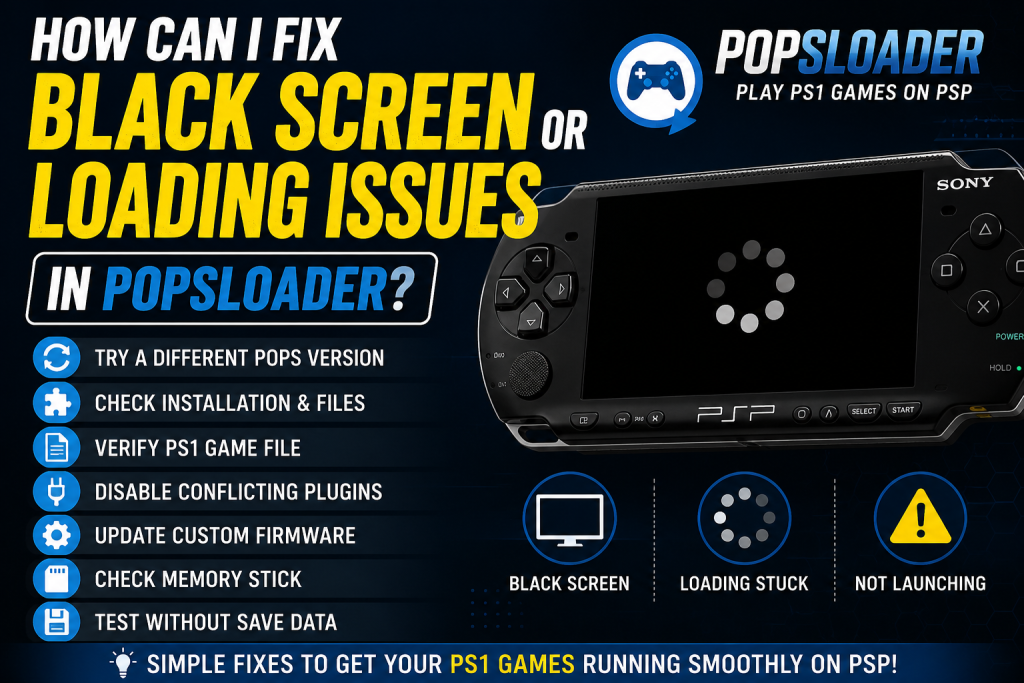
If you’re trying to play PlayStation 1 (PS1) games on your PSP using POPSLoader and keep running into a black screen, freezing, or endless loading issues, you’re not alone. These problems are common and usually happen because of compatibility issues, incorrect settings, or missing files.
The good news is that most POPSLoader black screen problems can be fixed with a few simple troubleshooting steps. In this guide, we’ll walk you through the most effective solutions to get your PS1 games running smoothly again.
Read More: Why Is POPSLoader Not Detecting My PS1 Games?
What Causes POPSLoader Black Screen Issues?
Before jumping into the fixes, it’s helpful to understand why these problems occur.
Common causes include:
- Using an incompatible POPS version
- Corrupted PS1 game files (EBOOT.PBP)
- Missing POPSLoader modules
- Incorrect PSP firmware installation
- Faulty game conversions
- Plugin conflicts with other PSP custom firmware plugins
Identifying the root cause can save you a lot of time during troubleshooting.
Try a Different POPS Version
One of the biggest advantages of POPSLoader is the ability to switch between different POPS versions. Since not every PS1 game works perfectly with the same version, changing the POPS version is often the quickest fix.
How to Change POPS Versions
- Launch your PS1 game.
- Hold the R Trigger while starting the game.
- The POPSLoader menu should appear.
- Select a different POPS version.
- Test the game again.
Many games that display a black screen on one version will work perfectly on another.
Verify That POPSLoader Is Installed Correctly
A faulty installation can prevent POPSLoader from functioning properly.
Check the following:
- POPSLoader plugin is enabled in the Recovery Menu.
- Required POPS files are located in the correct directory.
- Your PSP is running compatible Custom Firmware (CFW).
- The plugin appears in the plugin list without errors.
If necessary, reinstall POPSLoader and copy the required files again.
Check the PS1 Game File
Sometimes the issue isn’t POPSLoader at all—it’s the game file itself.
Things to Verify
- The EBOOT.PBP file is not corrupted.
- The game was converted correctly from the original PS1 disc image.
- The file transferred successfully to the PSP memory stick.
- The game is known to work with POPSLoader.
If possible, test another PS1 game. If the second game works, the original game file may be the problem.
Disable Conflicting Plugins
Some PSP plugins can interfere with POPSLoader and cause crashes, freezing, or black screens.
Common plugin conflicts include:
- Screen capture plugins
- Cheat engines
- Performance modifiers
- Game enhancement plugins
How to Test
- Open the Recovery Menu.
- Disable all plugins except POPSLoader.
- Restart the PSP.
- Launch the game again.
If the game starts normally, re-enable plugins one at a time to identify the conflict.
Update or Reinstall Custom Firmware
Older custom firmware versions may not fully support certain POPSLoader releases.
Make sure you’re using a stable and widely supported firmware version.
Benefits of updating firmware include:
- Better POPS compatibility
- Improved plugin support
- Bug fixes and stability improvements
- Enhanced PS1 game performance
Always follow official installation instructions for your specific PSP model.
Rebuild the Game Conversion
If you created the PS1 game yourself, the conversion process may have introduced errors.
Try:
- Recreating the EBOOT.PBP file.
- Using a different PS1 conversion tool.
- Converting from a clean disc image.
- Verifying that game assets were not damaged during conversion.
A fresh conversion often resolves loading and startup issues.
Check Memory Stick Health
A damaged or counterfeit Memory Stick can cause game loading failures.
Signs of storage-related issues include:
- Random freezes
- Corrupted files
- Slow loading times
- Games failing to launch
Consider:
- Backing up your data.
- Formatting the Memory Stick.
- Using a genuine memory card.
- Re-copying game files after formatting.
Test Without Save Data
In some cases, corrupted save files can prevent a PS1 game from loading.
Try the following:
- Back up your save files.
- Temporarily remove or rename the save folder.
- Launch the game as if it’s the first time.
If the game loads successfully, the save data may be corrupted.
Best Practices to Avoid POPSLoader Problems
To minimize future issues:
- Use trusted PS1 game backups.
- Keep POPSLoader files organized.
- Avoid installing unnecessary plugins.
- Use compatible POPS versions for each game.
- Back up save files regularly.
- Keep your PSP firmware updated.
Following these practices can significantly improve compatibility and stability.
Conclusion
Black screen and loading issues in POPSLoader are frustrating, but they are usually fixable. In most cases, switching to a different POPS version, checking your game files, disabling conflicting plugins, or reinstalling POPSLoader will solve the problem.
If you’re still experiencing issues after trying these solutions, test the game with multiple POPS versions and verify that both your custom firmware and game files are properly configured. With a little troubleshooting, you can get your favorite PS1 classics running smoothly on your PSP once again.